Showing posts with label Spring. Show all posts

Saturday, March 28, 2015

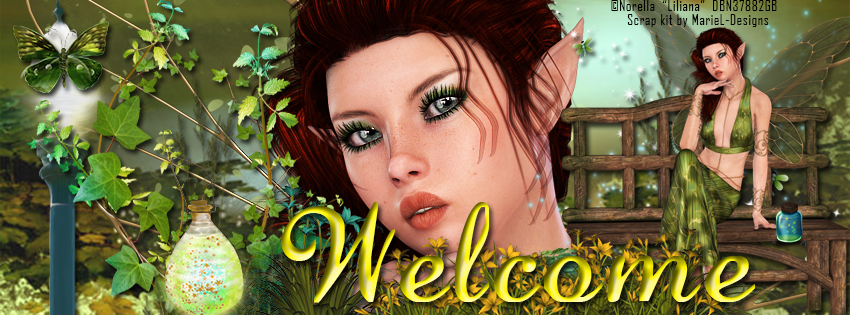
CT Tags featuring "Liliana" and "Fairy Spring"

Today's tags feature the beautiful fairy "Liliana" by Designs by Norella and the beautiful made-to-match kit "Fairy Spring" by MarieL-Designs.

Liliana is a gorgeous fairy which is perfect for your spring and summer fantasy tags. This beauty can be used with or without the bench. She is PTU and available for purchase at Designs by Norella's store.


This fantasy spring PTU kit by MarieL-Designs is full of bright fantasy items.  The kit includes 14 papers ranging from full scene backdrops to beautiful complimentary  patterns, 4 fabulous frames, and 75 fantasy elements.  Available at the following stores: Inzpired Creationz, Inspirations of ScrapfriendsBubble's Dream,  Scraps N Company, Render Art World, and Sensibility Scrapping.
Below are two sample tags made using the fabulous combination and a snaggable timeline cover.


Wednesday, July 2, 2014

My first ever CT Layout for Berry Applicious featuring kitkat79-scraps


CT Layout for Berry Applicious fetauring kitkat79-scraps kit "Soar Through Spring":


Want to celebrate your spring memories?  Then you won't want to miss this fabulous full size scrap kit "Soar Through Spring" by kitkat79-scraps.  This beautiful kit has everything you need to make a beautiful and memorable spring page including:

10 beautiful design papers
6 glitter papers
6 whimsical journal cards
78 elements (including 10 buttons and 7 wordart pieces among them)

Available for purchase at Berry Applicious:
http://berryapplicious.com/store/index.php?main_page=product_info&cPath=1_375&products_id=6927

Photos used in this layout are courtesy of stock images by faestock.  Please visit her DA site at:
http://faestock.deviantart.com/

Saturday, June 14, 2014

PTU Tutorial for Faerie1 and My Beautiful Garden


**This tutorial was written using Photoshop CC. I believe the instructions should work with various other versions, but they are not tested on any other version.  This tutorial is my own creation.  Any similarity to any other tutorial is not done purposely or knowingly (aside from the fact that the process is pretty similar in most tutorials).  If you do not know how to do some of the things I mention here (like mirroring an image, adding a drop shadow, resizing elements, etc.), check out my “Tips and Tricks” tutorial. **

Supplies:
PTU Poser – “Faerie1” by Shining Star Art (Kaci McVay).  You can purchase the poser at The PSP Project.

PTU Kit- “My Beautiful Garden” by Dance in the Rain.  Available at Lollipops N Gumdrops, Pics For Design, Dzines From the Heart or Heartbeatz Creationz.

FTU Mask – “Mask 12 – Flash” by Aeval Amore.  This mask is available for download on my blog, Aeval’s Art.

Abbreviations:
DS – Drop Shadow

Settings I use:
DS Settings - Blend Mode set to Multiply, Opacity set to 75%, Angle set to 120 degrees, Distance 5, Spread 0, Size 5

Ready…..Set….Tag!
Open Paper 6 in a new canvas.  Double click on the layer to unlock it.

Add the Mask to the canvas and resize if needed so it is the same size as the paper.  Then drag the mask layer below the paper layer.

With the mask layer selected, select all (Ctrl + A) and copy the entire canvas (Ctrl + C).  You will see dashed lines surround the canvas. 

Click on the paper layer to activate it, then turn on quick mask (Press the Q key on your keyboard).  The dashed lines will disappear and that is ok.  Next Paste onto the paper (Ctrl + V) and turn your Quick Mask off (Q again). 

You will now see a dotted outline of the mask on your paper.  Press the button on the bottom of layers side bar that is a rectangle with a circle cut out of it.  The mask will now show. 

Right click on the paper layer and select Convert to Smart Image.  This releases just the mask.  The background layer of the mask will become invisible on its own.

Open a new canvas (Ctrl +N) 700 x 700, transparent background.  This will be referred to as the working canvas in my directions when switching between canvases.

Add the paper/mask combination from above to the working canvas.  Resize to fit the canvas.

Add Element 12 to the canvas.  Resize to fit the width of the canvas.  Add DS. Position at the bottom of the canvas.

Add Element 67 to the canvas.  Resize to fit the width of the canvas and position in the center of the canvas.  Add DS.

Add Element 154 to the canvas.  Resize to fit the height of the canvas.  Position on the right side of the canvas above the rocks.

Add Element 43 to the canvas.  Resize to your liking and position on the left side of the canvas above the rocks.  Add DS.

Add Element 127 to the canvas.  Resize to your liking and position in the upper right corner.  Add DS.

Add Element 44 to the canvas.  Resize to fit and position in the center on top of the rocks.  Add DS.

Add your tube and resize to fit on the canvas.  Position on the right side of the canvas as though she is floating above the pool. Add DS.

Voila!  The focal point of your tag is now created.

Now decorate your tag with any of the gorgeous elements from the kit.  Resize the elements as you add them so fit the proportions of your tag.  Experiment with rotating them and mirroring them for more variety.  In addition duplicate elements and use multiple times to fill in holes and add more pizzazz.  In this tutorial to indicate when I used more than one of the same element I will add (X#) by the name to indicate how many versions of the element I used. 

Here are all the elements I used from the bottom layers up.
  • Element 28
  • Element 148 (x2)
  • Element 25 (x4)
  • Element 45 (x3)
  • Element 92
  • Element 7
  • Element 3
  • Element 4
  • Element 5
  • Element 79
  • Element 80
  • Element 32
  • Element 38
  • Element 26 (x2)

Add your license and copyright info to the tag.

Add name and any other text of choice.

Save as PNG and go share with all your friends!

Thank you for trying my tut! I’d love to see how your tags turn out so if you like what you made, please post a copy here or show me on Facebook!

Sunday, May 18, 2014

CT Tutorial for PTU Fiona tube by Ishika Chowdhury

**This tutorial was written using Photoshop CC. I believe the instructions should work with various other versions, but they are not tested on any other version.  This tutorial is my own creation.  Any similarity to any other tutorial is not done purposely or knowingly (aside from the fact that the process is pretty similar in most tutorials).  If you do not know how to do some of the things I mention here (like mirroring an image, adding a drop shadow, resizing elements, etc.), check out my “Tips and Tricks” tutorial. **

Supplies:
PTU Tube – “Fiona” by Ishika Chowdhury.  This tube is available in 3 different colors all in one file at Mystical Scraps.
PTU Kit – “Aquamarine Butterfly” by Amy Marie.  You can find all of Amy Marie’s beautiful kits for sale at her own store, Amy Marie’s Kits.

Mask – “Mask 06 – Fireball” by Aeval Amore.  Available on my blog, Aeval’s Art.

Abbreviations:
DS – Drop Shadow

Settings I use:
DS Settings - Blend Mode set to Multiply, Opacity set to 75%, Angle set to 120 degrees, Distance 5, Spread 0, Size 5

Ready…..Set….Tag!
Prepare your mask using the FTU mask above and Paper 18.  If you do not know how to combine the two, you can find a tutorial to do so here

Open a new canvas (Ctrl +N) 700 x 700, transparent background.  This will be referred to as the working canvas in my directions when switching between canvases.

Add your mask to the canvas.  Resize to about 75% or until you like the way it fits on the canvas.  Position it so it is slightly off center to the left.  Duplicate the layer and flip the duplicate layer horizontally (See the tutorial in the intro above if you don’t know how to do this) and drag to the right side of the canvas.

Add Element 88 to the canvas.  Resize to fit the canvas.  Position in the upper left corner.  Duplicate layer, flip horizontally, and pull the duplicate to the right side of the canvas.

Add Element 23 to the canvas.  Resize so it fits the width of the canvas nicely.  Position toward the bottom of the canvas.

Add Element 28 to the canvas.  Resize to fit the canvas and position in the lower right corner.  Pull the layer below Element 23 layer.  Duplicate the layer and drag over to the left side of the canvas.  Duplicate the layer again, flip it horizontally and position to fill in the gap in the floor of leaves.

Add your tube to the canvas.  Resize her so she fits on top of Element 23.

Voila!  The focal point of your tag is now created.

Now decorate your tag with any of the beautiful elements from the kit.  Resize the elements as you add them to fit the proportions of your tag.  Experiment with rotating them and mirroring them for more variety.  In addition duplicate elements and use multiple times to fill in holes and add more pizzazz.  In this tutorial to indicate when I used more than one of the same element I will add (X#) by the name to indicate how many versions of the element I used. 

Here are all the elements I used from the bottom layers.
  • Element 86
  • Element 85
  • Element 83
  • Element 31
  • Element 22
  • Element 82 (x2)
  • Element 81
  • Element 69
  • Element 60
  • Element 21
  • Element 74
  • Element 73
  • Element 94
  • Element 93 (x2)
  • Element 67
  • Element 6 (x2)
  • Element 62
  • Element 78
  • Element 77
  • Element 87 (x2)
  • Element 91

Add your license and copyright info to the tag.

Add name and any other text of choice.

Save as PNG and go share with all your friends!

Thank you for trying my tut! I’d love to see how your tags turn out so if you like what you made, please post a copy here or show me on Facebook!

Tuesday, May 13, 2014

CT Tutorial for Starla - PTU Poser by Designs by Norella

**This tutorial was written using Photoshop CC. I believe the instructions should work with various other versions, but they are not tested on any other version.  This tutorial is my own creation.  Any similarity to any other tutorial is not done purposely or knowingly (aside from the fact that the process is pretty similar in most tutorials).  If you do not know how to do some of the things I mention here (like mirroring an image, adding a drop shadow, resizing elements, etc.), check out my “Tips and Tricks” tutorial. **

Supplies:
PTU Poser – “Starla” by Designs By Norella.  You can purchase the tube at PicsForDesign.com.

PTU Kit- “Spring Magic” by PinkParadox Productions.  You can purchase this whimsical kit at PinkParadox Productions store.


Abbreviations:
DS – Drop Shadow

Settings I use:
DS Settings - Blend Mode set to Multiply, Opacity set to 75%, Angle set to 120 degrees, Distance 5, Spread 0, Size 5

Ready…..Set….Tag!
Open a new canvas (Ctrl +N) 700 x 700, transparent background.  This will be referred to as the working canvas in my directions when switching between canvases.

Add Paper 23 to the canvas and resize to fit the canvas.

Add Element 137 to the canvas and resize to fit the canvas so the upper portion of the leaves swag is in the upper right corner.

Add Element 82 to the canvas in the upper right corner in front of the leaves.

Add Element 132 to the canvas.  Resize and position on the left sky portion of the canvas.  Add DS.

Add Element 120 to the canvas.  Resize to fit the width of the canvas and position on top of the grass.  Add DS.

Add Element 81 to the canvas.  Resize to fit in the bottom left corner of the canvas.  Add DS and a yellow Stroke effect with the width of 1.

Add your poser to the canvas on top of all your layers.  Resize her so she fits on the right side of the canvas. Add DS. 

Voila!  The focal point of your tag is now created.

Now decorate your tag with any of the spring elements from the kit.  Resize the elements as you add them so fit the proportions of your tag.  Experiment with rotating them and mirroring them for more variety.  In addition duplicate elements and use multiple times to fill in holes and add more pizzazz.  In this tutorial to indicate when I used more than one of the same element I will add (X#) by the name to indicate how many versions of the element I used. 

Here are all the elements I used from the bottom layers up.
  • Element 134
  • Element 107 (x2)
  • Element 115
  • Element 90
  • Element 117

Add your license and copyright info to the tag.

Add name and any other text of choice.

Save as PNG and go share with all your friends!

Thank you for trying my tut! I’d love to see how your tags turn out so if you like what you made, please post a copy here or show me on Facebook!

Saturday, May 3, 2014

CT Tutorial for Dav and Ash by English Rose Designs


**This tutorial was written using Photoshop CC. I believe the instructions should work with various other versions, but they are not tested on any other version.  This tutorial is my own creation.  Any similarity to any other tutorial is not done purposely or knowingly (aside from the fact that the process is pretty similar in most tutorials).  If you do not know how to do some of the things I mention here (like mirroring an image, adding a drop shadow, resizing elements, etc.), check out my “Tips and Tricks” tutorial. **

Supplies:
PTU Posers – “Dav and Ash 1” by English Rose Designs.  You can purchase these posers exclusively at her store English Rose Designs Dav and Ash 1.

PTU Kit- “Gentle Dreams” by Tiny Turtle Designs.  You can purchase this beautiful kit at the official Tiny Turtle Designs store.

Mask – “Mask 04 – Sky Heart” by Aeval Amore.  Available on my blog, Aeval’s Art.

Abbreviations:
DS – Drop Shadow

Settings I use:
DS Settings - Blend Mode set to Multiply, Opacity set to 75%, Angle set to 120 degrees, Distance 5, Spread 0, Size 5

Ready…..Set….Tag!
Open a new canvas (Ctrl +N) 700 x 700, transparent background.  This will be referred to as the working canvas in my directions when switching between canvases.

Open Paper 14 as a new canvas.  Double click the layer to unlock it (you will know it needs to be unlocked if a little padlock displays on the layer).

Add the Mask png file on top of the background layer.  Then drag the mask layer below the background. 

With the mask layer selected, select all (Ctrl + A) and copy the entire canvas (Ctrl + C).  You will see dashed lines surround the canvas. 

Click on the Background layer to activate it, then turn on quick mask (Press the Q key on your keyboard).  The dashed lines will disappear and that is ok.  Next Paste onto the background (Ctrl + V) and turn your Quick Mask off (Q again). 

You will now see a dotted outline of the mask on your background.  Press the button on the bottom of layers side bar that is a rectangle with a circle cut out of it.  The mask will now show. 

Right click on the background layer and select Convert to Smart Image.  This releases just the mask. 

Add the mask layer to your Working canvas.  Resize to fit your canvas.    Make it the bottom layer.

Add Element 91 to the canvas.  Position so it is off to the right of the heart design in the mask.  Add a style to make it semi-transparent and beveled.

Add Element 105 to the canvas.  Resize to fit the canvas and position to the left side of the canvas.  Add DS.

Add the Ash_1b poser to the canvas.  Resize him so he fits on the left side of the canvas and looks as though his foot is resting on the well. Add DS.

Add the Dav poser to the canvas.  Resize her so she fits on the canvas and position so it looks as though she is leaning slightly against Ash.

Voila!  The focal point of your tag is now created.

Now decorate your tag with any of the beautiful elements from the kit.  Resize the elements as you add them so fit the proportions of your tag.  Experiment with rotating them and mirroring them for more variety.  In addition duplicate elements and use multiple times to fill in holes and add more pizzazz.  In this tutorial to indicate when I used more than one of the same element I will add (X#) by the name to indicate how many versions of the element I used. 

Here are all the elements I used from the bottom layers up.
  • Element 64
  • Element 85 (x3)
  • Element 84
  • Element 57
  • Element 71
  • Element 87
  • Element 53 (x2)
  • Element 45
  • Element 51
  • Element 48
  • Element 61

Add your license and copyright info to the tag.

Add name and any other text of choice.

Save as PNG and go share with all your friends!

Thank you for trying my tut! I’d love to see how your tags turn out so if you like what you made, please post a copy here or show me on Facebook!

Wednesday, April 30, 2014

FTU Collection of 14 snaggable FB Timeline Covers


Enjoy the covers!  These are some snaggable ones I've made over the past year.  Please feel free to leave some love if you'd like to see more of them.


Saturday, April 26, 2014

CT Tutorial for Corinna by Shining Star Art (Kaci McVay)


**This tutorial was written using Photoshop CC. I believe the instructions should work with various other versions, but they are not tested on any other version.  This tutorial is my own creation.  Any similarity to any other tutorial is not done purposely or knowingly (aside from the fact that the process is pretty similar in most tutorials).  If you do not know how to do some of the things I mention here (like mirroring an image, adding a drop shadow, resizing elements, etc.), check out my “Tips and Tricks” tutorial. **

Supplies:
PTU Kit- “8 of 2014” by Amy Marie.  This kit is available for purchase at Amy Marie’s Kits: http://amymarieskits.com/store/index.php?main_page=product_info&cPath=45&products_id=713

Poser – “Corinna” by Shining Star Art (Kaci McVay).  Get this hot poser at The PSP Project: http://www.thepspproject.com/designers-artists/kaci-mcvay/corinna

Abbreviations:
DS – Drop Shadow

Settings I use:
DS Settings - Blend Mode set to Multiply, Opacity set to 75%, Angle set to 120 degrees, Distance 5, Spread 0, Size 5

Ready…..Set….Tag!
Open a new canvas (Ctrl +N) 700 x 700, transparent background.  This will be referred to as the working canvas in my directions when switching between canvases.

Add Element 73 to your canvas.  Resize to fit the canvas. Position in Center.  Add DS.

Add paper 10 to the canvas under the window layer and resize to fill in the open window area of Element 73.  Use the eraser tool to erase any paper outside of the area you want it to show in.

Add the poser to your canvas.  Position the poser so the bottom of the poser is behind the flower box.  Resize so that her head is slightly above the window frame.  Add DS.

Duplicate the poser and move the duplicate layer above the Element 73 layer.  Select both layers of the poser and right click on one.  Select Link Layers.  Left click on the duplicate layer to select only it.  Remove the DS.  Use the Eraser tool to erase the duplicate poser layer anywhere you want the frame element to show through.  It now looks as though the poser is looking out the window.

Voila!  The focal point of your tag is now created.

Now decorate your tag with any of the elements from the kit.  Resize the elements as you add them so fit the proportions of your tag.  Experiment with rotating them and mirroring them for more variety.  In addition duplicate elements and use multiple times to fill in holes and add more pizzazz.  In this tutorial to indicate when I used more than one of the same element I will add (X#) by the name to indicate how many versions of the element I used. 

Here are all the elements I used from the bottom layers up.
  • Element 26 (x2)
  • Element 66
  • Element 35 (x2)
  • Element 6 (x2)
  • Element 40 (x2)
  • Element 44 (x2)
  • Element 51 (x2)
  • Element 77 (x2)
  • Element 36
  • Element 82
  • Element 86
  • Element 38
  • Element 10 (x2)
  • Element 14 (x2)
  • Element 16
  • Element 88
  • Element 8 (x2)
  • Element 22 (x2)

Add your license and copyright info to the tag.

Add name and any other text of choice.

Save as PNG and go share with all your friends!

Thank you for trying my tut! I’d love to see how your tags turn out so if you like what you made, please post a copy here or show me on Facebook!

Friday, April 25, 2014

CT Tutorial for Froggy Land by MistyLynns Creations


**This tutorial was written using Photoshop CC. I believe the instructions should work with various other versions, but they are not tested on any other version.  This tutorial is my own creation.  Any similarity to any other tutorial is not done purposely or knowingly (aside from the fact that the process is pretty similar in most tutorials).  If you do not know how to do some of the things I mention here (like mirroring an image, adding a drop shadow, resizing elements, etc.), check out my “Tips and Tricks” tutorial. **

Supplies:
PTU Kit- “Froggy Land” by MistyLynns Creations.  Available at Scraps N Company, Pics For Design, or Scrap Candy.

Exclusive Tube  – “Lady Spring” by Misticheskaya.  This tube was a PFD loyal customer gift and is not available for purchase.  However, Misticheskaya has several others which would match the kit as well which you can purchase at Pics For Design.

Abbreviations:
DS – Drop Shadow

Settings I use:
DS Settings - Blend Mode set to Multiply, Opacity set to 75%, Angle set to 120 degrees, Distance 5, Spread 0, Size 5

Ready…..Set….Tag!
Add Element 44 to canvas.  Resize so it frames the entire canvas.  Add DS.

Add Paper 01 to canvas.  Resize to fit the entire canvas.  Make sure this is the bottom layer of your tag.

Add Element 53 to canvas.  Resize to fit width of canvas.  Position at the bottom of the tag.  Add DS.

Add Element 51 to canvas.  Resize to fit width of canvas.  Position so that it is over the pond creating a grassy bank.  Add DS.

Add Element 39 to canvas.  Resize to fit proportion of tag.  The tube you add will be sitting on the log so position the log so it is bridging the stream portion of the tag and is sized to fit your tube on top of.  Add DS.

Add your tube and resize her to fit the canvas.  Position her so she is sitting on the log with her feet extended to the other side of the bank.  Add DS.

Duplicate tube layer and flip horizontally.  Move the layer below Element 51 layer. Use the menu bar to select Edit > Transform > Free Transform to rotate the tube so her face is reflected under the water area.  Use the eraser tool to erase any part of the tube above the water area.

Voila!  The focal point of your tag is now created.

Now decorate your tag with any of the beautiful elements from the kit.  Resize the elements as you add them so fit the proportions of your tag.  Experiment with rotating them and mirroring them for more variety.  In addition duplicate elements and use multiple times to fill in holes and add more pizzazz.  In this tutorial to indicate when I used more than one of the same element I will add (X#) by the name to indicate how many versions of the element I used. 

Here are all the elements I used from the bottom layers up.
  • Element 38
  • Element 50
  • Element 47 (x2)
  • Element 55
  • Element 43
  • Element 59
  • Element 35
  • Element 01 (x3)

Add your license and copyright info to the tag.

Add name and any other text of choice.

Save as PNG and go share with all your friends!

Thank you for trying my tut! I’d love to see how your tags turn out so if you like what you made, please post a copy here or show me on Facebook!

Thursday, April 24, 2014

CT Tutorial for PTU Kit Springtime by Dance In The Rain


**This tutorial was written using Photoshop CC. I believe the instructions should work with various other versions, but they are not tested on any other version.  This tutorial is my own creation.  Any similarity to any other tutorial is not done purposely or knowingly (aside from the fact that the process is pretty similar in most tutorials).  If you do not know how to do some of the things I mention here (like mirroring an image, adding a drop shadow, resizing elements, etc.), check out my “Tips and Tricks” tutorial. **

Supplies:
PTU Kit- “Springtime” by Dance In The Rain.  Available at Lollipops N Gumdrops, Pics For Design, or Dzines From the Heart.

PTU Tube – “Spring” by Verymany.  This tube is available at verymanytubes.

Abbreviations:
DS – Drop Shadow

Settings I use:
DS Settings - Blend Mode set to Multiply, Opacity set to 75%, Angle set to 120 degrees, Distance 5, Spread 0, Size 5

Ready…..Set….Tag!
Open up the PSD file for the template.  This will be referred to as the working canvas in my directions when switching between canvases.

Add Paper 13 to canvas.  Resize to fit the entire canvas.

Add Paper 2 to canvas. And resize to fit the canvas.  Right click on the layer and select Rasterize Layer.  Use the eraser tool to erase the bottom part of the paper.  The result will look like a sky on top and grass on the bottom.

Add Element 99 to the canvas.  Resize to fit the proportion of the tag.  Position toward the bottom left of the tag.  Add DS.

Add Element 49 to the canvas.  Resize to fit the width of the canvas.  Right click on the layer and select Duplicate layer.  Drag the duplicate layer below the original and then on the canvas move the grass so it rises slightly above the other layer.  This creates depth in the grass.

Add Element 96.  Resize and position so the steps look as though they are leading away from the tree.  Add DS.

Add your tube to the canvas.  Resize and position so it looks like she is kneeling in front of the tree stump.  Add DS.

Add Wordart 1.  Resize and position in the sky above the tree stump.  Add DS.

Voila!  The focal point of your tag is now created.

Now decorate your tag with any of the beautiful elements from the kit.  Resize the elements as you add them so fit the proportions of your tag.  Experiment with rotating them and mirroring them for more variety.  In addition duplicate elements and use multiple times to fill in holes and add more pizzazz.  In this tutorial to indicate when I used more than one of the same element I will add (X#) by the name to indicate how many versions of the element I used. 

Here are all the elements I used from the bottom layers up.
  • Element 95 (x2)
  • Element 104
  • Element 29
  • Element 38
  • Element 16
  • Element 2
  • Element 103
  • Element 39
  • Element 89
  • Element 50
  • Element 94
  • Element 28
  • Element 104
  • Element 98

Add your license and copyright info to the tag.

Add name and any other text of choice.

Save as PNG and go share with all your friends!


Thank you for trying my tut! I’d love to see how your tags turn out so if you like what you made, please post a copy here or show me on Facebook!
Tuesday, April 22, 2014

CT Tutorial for PTU Kit Mystic Wonders by Michelle's Myths


**This tutorial was written using Photoshop CC. I believe the instructions should work with various other versions, but they are not tested on any other version.  This tutorial is my own creation.  Any similarity to any other tutorial is not done purposely or knowingly (aside from the fact that the process is pretty similar in most tutorials).  If you do not know how to do some of the things I mention here (like mirroring an image, adding a drop shadow, resizing elements, etc.), check out my “Tips and Tricks” tutorial. **

Supplies:
PTU Kit- “Mystic Wonders” by Michelle’s Myths.  You can buy this beautiful kit at PicsForDesign or Scrap Candy.
PTU Poser – “Mystic” by Designs by Norella.  You can purchase the tube Exclusively at Scraps From the Heart

Abbreviations:
DS – Drop Shadow

Settings I use:
DS Settings - Blend Mode set to Multiply, Opacity set to 75%, Angle set to 120 degrees, Distance 5, Spread 0, Size 5

Ready…..Set….Tag!
Open up the PSD file for the template.  This will be referred to as the working canvas in my directions when switching between canvases.

Add Paper 6 and resize to fit the entire canvas.

Switch to the Poser psd canvas. Use the Rectangular Marquee Tool to draw a box around the top half of the poser in Layer 0 of the psd file.  Copy (Ctrl + C) the selection and return to your working canvas.

On your working canvas make sure the Paper 6 layer is selected then paste (Ctrl + V) the copied selection.  Transpose the selection horizontally. Resize the selection so that poser’s head fits to your satisfaction in the middle of the sky.  To give it the transparent look that mine has, in the Blending Options change the opacity to 23%. 

Add Frame 3 to the canvas resize so it the leaves forms a frame around the face.  Add DS

Add Element 36 to the canvas and resize to fit the width of the canvas.  Add DS.

Under the grass layer, add Element 24.  Resize and position so that the bottom of the keep is slightly below the grass on the left side of the canvas.  Add DS.

Add Element 59.  Resize and position so the edge of the rocks are just above the grass line.  Duplicate layer and spread the rocks to fill up the sky line.  Add DS to both layers.

Add the full poser to the canvas.  Resize to fit and position on the right hand side so she is standing in front of the rocks on the grass.

Voila!  The focal point of your tag is now created.

Now decorate your tag with any of the gorgeous elements from the kit.  Resize the elements as you add them so they fit the proportions of your tag.  Experiment with rotating them and mirroring them for more variety.  In addition duplicate elements and use multiple times to fill in holes and add more pizzazz.  In this tutorial to indicate when I used more than one of the same element I will add (X#) by the name to indicate how many versions of the element I used. 

Here are all the elements I used from the bottom layers up.
  • Element 20
  • Element 4
  • Element 6
  • Element 11
  • Element 12
  • Element 7
  • Element 28
  • Element 31
  • Element 33
  • Element 27
  • Element 2

To finish off the canvas, use the rectangular marquee tool to select the entire canvas.  Add a new layer and from the menu bar use Select > Modify > Border set the width to 10.  Select a blue color as the foreground and use the paint bucket tool to fill in the border.  Apply a matching style.

Add your license and copyright info to the tag.

Add name and any other text of choice.

Save as PNG and go share with all your friends!


Thank you for trying my tut! I’d love to see how your tags turn out so if you like what you made, please post a copy here or show me on Facebook!

Friday, April 18, 2014

CT Tutorial for Roxette by English Rose Designs


**This tutorial was written using Photoshop CC. I believe the instructions should work with various other versions, but they are not tested on any other version.  This tutorial is my own creation.  Any similarity to any other tutorial is not done purposely or knowingly (aside from the fact that the process is pretty similar in most tutorials).  If you do not know how to do some of the things I mention here (like mirroring an image, adding a drop shadow, resizing elements, etc.), check out my “Tips and Tricks” tutorial. **

Supplies:
Tube – “Roxette” by English Rose Designs.  You can purchase the tube exclusively at her store English Rose Designs.

Kit- “Bloom” by Amy Marie.  Available at her store Amy Marie’s Kits.

Abbreviations:
DS – Drop Shadow

Settings I use:
DS Settings - Blend Mode set to Multiply, Opacity set to 75%, Angle set to 120 degrees, Distance 5, Spread 0, Size 5

Ready…..Set….Tag!
Open up the PSD file for the template.  This will be referred to as the working canvas in my directions when switching between canvases.

Add Frame 21 and resize to the fit the canvas. 

Add Paper 5 in a layer below the frame.  Resize it so that the open part in the center of the frame has paper completely behind it.

Between the paper and frame layers add the following elements to decorate the background.  Resize, rotate, and add DS as you see fit to suit your tastes:
  • Element 31
  • Element 33
  • Element 13 (x2)

Switch to the Poser psd canvas. Use the Rectangular Marquee Tool to draw a box around the head and shoulders of the poser in the psd file.  Copy (Ctrl + C) the selection and return to your working canvas.

On your working canvas paste (Ctrl + V) the copied selection.  Resize to fit the canvas and position as though she is peeking through the frame.

Add your poser to the canvas.  Resize her so she fits on the right side of the canvas. Add DS.

Voila!  The focal point of your tag is now created.

Now decorate your tag with any of the beautiful spring elements from the kit.  Resize the elements as you add them so fit the proportions of your tag.  Experiment with rotating them and mirroring them for more variety.  In addition duplicate elements and use multiple times to fill in holes and add more pizzazz.  In this tutorial to indicate when I used more than one of the same element I will add (X#) by the name to indicate how many versions of the element I used. 

Here are all the elements I used from the bottom layers up.
  • Element 83
  • Element 91 (x2)
  • Element 45
  • Element 46
  • Element 42 (x2)
  • Element 44
  • Element 38
  • Element 40
  • Element 39
  • Element 35
  • Element 36
  • Element 50
  • Element 51
  • Element 72
  • Element 59
  • Element 63
  • Element 32
  • Element 50
  • Element 27
  • Element 18
  • Element 1
  • Element 4
  • Element 10

 Add your license and copyright info to the tag.

Add name and any other text of choice.

Save as PNG and go share with all your friends!

Thank you for trying my tut! I’d love to see how your tags turn out so if you like what you made, please post a copy here or show me on Facebook!