Showing posts with label Fantasy. Show all posts

Tuesday, April 7, 2015

CT Tags featuring "Zarinya" and matching kit "Ladybug Garden"

Today's tags features the fantastical fairy "Zarinya" by Designs by Norella and the matching kit "Ladybug Garden" by Amy Marie.

Zarinya is a cute little ladybug fairy poser perfect for your summer tags. She is PTU and available for purchase at Designs by Norella's store.


The adorable ladybug kit "Ladybug Garden" by Amy Marie is filled with adorable ladybug themed items which matched this poser perfectly.  The kit includes 22 beautiful papers and 132 fun elements.

Below are two tags made using this fun combination.


Saturday, March 28, 2015

CT Tags featuring "Liliana" and "Fairy Spring"

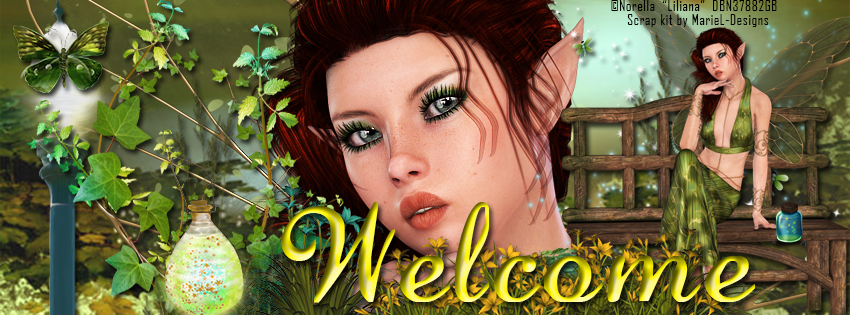
Today's tags feature the beautiful fairy "Liliana" by Designs by Norella and the beautiful made-to-match kit "Fairy Spring" by MarieL-Designs.

Liliana is a gorgeous fairy which is perfect for your spring and summer fantasy tags. This beauty can be used with or without the bench. She is PTU and available for purchase at Designs by Norella's store.


This fantasy spring PTU kit by MarieL-Designs is full of bright fantasy items.  The kit includes 14 papers ranging from full scene backdrops to beautiful complimentary  patterns, 4 fabulous frames, and 75 fantasy elements.  Available at the following stores: Inzpired Creationz, Inspirations of ScrapfriendsBubble's Dream,  Scraps N Company, Render Art World, and Sensibility Scrapping.
Below are two sample tags made using the fabulous combination and a snaggable timeline cover.


Wednesday, February 4, 2015

CT Tags featuring "Emma" by Ishika Chowdhury

Introducing the beautiful tube "Emma" by Ishika Chowdhury:


 Emma comes in 6 colors of dress with two hair colors.  This mysterious and beautiful PTU tube is available for sale at Mystical Scraps, and this month all Ishika Chowdhury tubes are on sale for $1!!

Now for the showoff.  Both tags this time are matched with PTU kits by Amy Marie kits.  

This is the violet layer of Emma, and I matched her with "On Dragonfly Wings":


And this is the pink layer of Emma, matched with "Cuddles":


Come check out Emma and all of Ishika Chowdhury's other beautiful tubes in her store at Mystical Scraps on sale for $1 all this month!

Sunday, January 11, 2015

CT Tutorial for "Love Fairy 1" by English Rose Designs

**This tutorial was written using Photoshop CC. I believe the instructions should work with various other versions, but they are not tested on any other version.  This tutorial is my own creation.  Any similarity to any other tutorial is not done purposely or knowingly (aside from the fact that the process is pretty similar in most tutorials).  If you do not know how to do some of the things I mention here (like mirroring an image, adding a drop shadow, resizing elements, etc.), check out my “Tips and Tricks” tutorial. **

Supplies:
PTU Poser – “Love Fairy 1” by English Rose Designs.  You can purchase this elegant beauty at her store, English Rose Designs.

PTU Kit - “Beautiful Love” by Bookworm Dezines

FTU Mask - "Mask 110" by Aqua Rebel.  Available for download on her blog.

Abbreviations:
DS – Drop Shadow

Settings I use:
DS Settings - Blend Mode set to Multiply, Opacity set to 75%, Angle set to 120 degrees, Distance 5, Spread 0, Size 5

Ready…..Set….Tag!
Open Paper 1 in a new canvas.  Double click on the layer to unlock it.

Add the Mask to the canvas and resize if needed so it is the same size as the paper.  Then drag the mask layer below the paper layer.

With the mask layer selected, select all (Ctrl + A) and copy the entire canvas (Ctrl + C).  You will see dashed lines surround the canvas. 

Click on the paper layer to activate it, then turn on quick mask (Press the Q key on your keyboard).  The dashed lines will disappear and that is ok.  Next Paste onto the paper (Ctrl + V) and turn your Quick Mask off (Q again). 

You will now see a dotted outline of the mask on your paper.  Press the button on the bottom of layers side bar that is a rectangle with a circle cut out of it.  The mask will now show. 

Right click on the paper layer and select Convert to Smart Image.  This releases just the mask.  The background layer of the mask will become invisible on its own.

Open a new canvas (Ctrl +N) 700 x 700, transparent background.  This will be referred to as the working canvas in my directions when switching between canvases.

Add Paper 8 to the canvas.  Resize paper to fit entire canvas.

Add the paper/mask combination from above to the working canvas.  Resize to fit the canvas.

Add the full poser to the canvas.  Resize to fit and position on the right side of the canvas.  Add DS. 

Add Element 19 to the canvas.  Resize to fit beside the poser with it slightly overlapping her.  Move the layer below the poser. Add Outer Glow blending option.

Open the poser in another canvas. Use the marquee tool and draw a rectangle around the top half of the poser.  Copy (Ctrl + C) the poser and switch back to the working canvas.  Select the make layer and paste (Ctrl + V) the poser onto the canvas.  Resize the poser to display to your liking and position in the center of the Frame.  Mover the layer below the frame layer.  Right click on the layer and select “create clipping mask”.  This will adhere it to the mask and give it the faded effect.

Add Element 58 to the canvas.  Resize to fit the canvas.  Position at the bottom of the tag so it looks like the poser is walking on the gems.

Add Element 35 to the canvas and resize to fit the width of the canvas.  Position slightly below the heart frame so it slightly overlaps it.  Make sure this layer is above the frame layer.

Voila!  The focal point of your tag is now created.

Now decorate your tag with any of the beautiful elements from the kit.  Resize the elements as you add them so they fit the proportions of your tag.  Experiment with rotating them and mirroring them for more variety.  In addition duplicate elements and use multiple times to fill in holes and add more pizzazz.  In this tutorial to indicate when I used more than one of the same element I will add (X#) by the name to indicate how many versions of the element I used. 

Here are all the additional elements I used from the bottom layers up.
  • Element 60
  • Element 48
  • Element 39 (x2)
  • Element 38
  • Element 47 (x2)
  • Element 46 (x2)

Add your license and copyright info to the tag.

Add name and any other text of choice.

Save as PNG and go share with all your friends!

Thank you for trying my tut! I’d love to see how your tags turn out so if you like what you made, please post a copy here or show me on Facebook!

Saturday, November 29, 2014

CT Tags for Kikina and Legend of the Snow Dragon

Today's tags feature the beautiful fantasy poser "Kikina" by Designs by Norella and the matching kit "Legend of the Snow Dragon" by Mariel Designs.

Kikina is a beautiful winter fairy frolicking with her pet dragon. She is PTU and available for purchase at Designs by Norella's store.


The fabulous made-to-match kit by Mariel Designs is full of wonderful winter fantasy items.  The kit includes 10 gorgeous papers, 4 fabulous frames, and 70 magical elements.
Below are two sample tags made using the fantastic combination.


Thursday, November 27, 2014

CT Tutorial featuring "Ranger Quinn" by English Rose Designs


**This tutorial was written using Photoshop CC. I believe the instructions should work with various other versions, but they are not tested on any other version.  This tutorial is my own creation.  Any similarity to any other tutorial is not done purposely or knowingly (aside from the fact that the process is pretty similar in most tutorials).  If you do not know how to do some of the things I mention here (like mirroring an image, adding a drop shadow, resizing elements, etc.), check out my “Tips and Tricks” tutorial. **

Supplies:
PTU Poser – “Ranger Quinn” by English Rose Designs.  You can purchase this elegant beauty at her store, English Rose Designs.

PTU Kit - “Softly Falls the Snow” by Graphics of Fantasy Designs.  You can purchase this elegant winter kit at PicsForDesign.com.

FTU Mask - "Mask 05 - Dreamscape" by Aeval Amore.  Available for download on my blog, Aeval's Art.

Abbreviations:
DS – Drop Shadow

Settings I use:
DS Settings - Blend Mode set to Multiply, Opacity set to 75%, Angle set to 120 degrees, Distance 5, Spread 0, Size 5

Ready…..Set….Tag!
Open Paper 5 in a new canvas.  Double click on the layer to unlock it.

Add the Mask to the canvas and resize if needed so it is the same size as the paper.  Then drag the mask layer below the paper layer.

With the mask layer selected, select all (Ctrl + A) and copy the entire canvas (Ctrl + C).  You will see dashed lines surround the canvas. 

Click on the paper layer to activate it, then turn on quick mask (Press the Q key on your keyboard).  The dashed lines will disappear and that is ok.  Next Paste onto the paper (Ctrl + V) and turn your Quick Mask off (Q again). 

You will now see a dotted outline of the mask on your paper.  Press the button on the bottom of layers side bar that is a rectangle with a circle cut out of it.  The mask will now show. 

Right click on the paper layer and select Convert to Smart Image.  This releases just the mask.  The background layer of the mask will become invisible on its own.

Open a new canvas (Ctrl +N) 700 x 700, transparent background.  This will be referred to as the working canvas in my directions when switching between canvases.

Add the paper/mask combination from above to the working canvas.  Resize to fit the canvas.

Add Element 53 to the canvas.  Resize to fit the width of the canvas and position at the bottom.  Add DS.

Add Element 4 to the canvas.  Resize to about ¾ the size of the canvas.  Move this layer under the Element 53 layer and position so part of the church is visible behind the trees.

Select the Element 53 layer to make it the active layer.  Then add Element 50 to the canvas and resize to fit the width of the canvas.  Position at the bottom of the canvas overlapping the hill.  Add DS.

Add Element 31 to the canvas.  Resize to your liking and position on the left side on the canvas.  Position the deer so it looks as though it is stepping onto the snow covered wood.  Add DS.

Add the full poser to the canvas.  Resize to fit and position on the left side of the canvas in front of the back half of the deer.  Add DS. 

Voila!  The focal point of your tag is now created.

Now decorate your tag with any of the winter elements from the kit.  Resize the elements as you add them so they fit the proportions of your tag.  Experiment with rotating them and mirroring them for more variety.  In addition duplicate elements and use multiple times to fill in holes and add more pizzazz.  In this tutorial to indicate when I used more than one of the same element I will add (X#) by the name to indicate how many versions of the element I used. 

Here are all the additional elements I used from the bottom layers up.
  • Element 101
  • Element 77
  • Element 67
  • Element 110
  • Element 39
  • Element 33
  • Element 1
  • Element 40
  • Element 107
  • Element 28

Add your license and copyright info to the tag.

Add name and any other text of choice.

Save as PNG and go share with all your friends!


Thank you for trying my tut! I’d love to see how your tags turn out so if you like what you made, please post a copy here or show me on Facebook!

Saturday, November 8, 2014

CT Tags for "Tatiana" by Designs by Norella

"Tatiana" by Designs by Norella available here.
 Don't miss this PTU whimsical winter lovely!
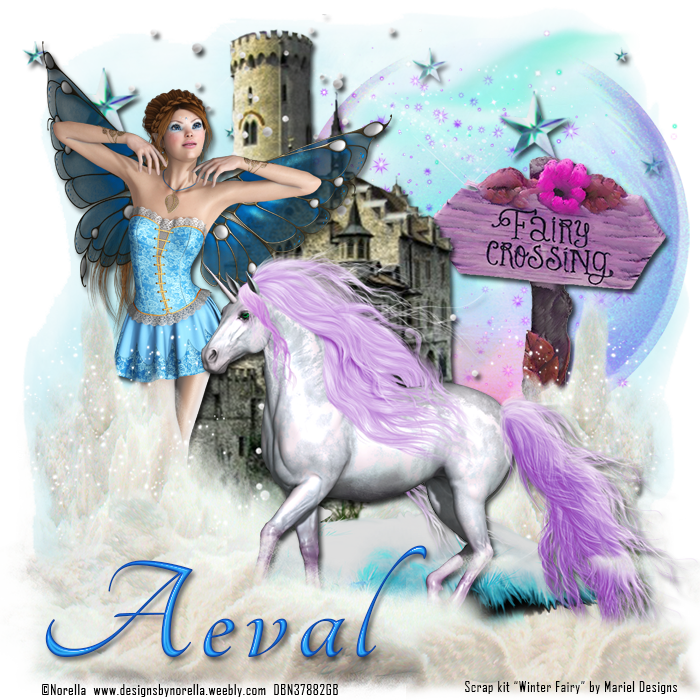
For my first tag I paired Tatiana with PTU Kit "Winter Fairy" by Mariel Designs
For my second tag, I paired her up with FTU Kit "Winter Wonderland" by Digicats (& Dogs).
Come check out Tatiana and all the other beautiful work at


CT Tags for Winter Fairy by Mariel Designs

"Winter Fairy" by Mariel Designs available at Bubble's Dream, Scrappin Dollars,  and Scraps N Company.

This winter fantasy kit comes with 70 Elements, 10 papers, and 6 frames. It is perfect for your magical winter tags.

For my first tag with this autumnal kit I paired it with "Tatiana" by Designs by Norella

For my second tag, I paired it with "Realynn"  by Designs by Norella


Tuesday, October 28, 2014

CT Tags for "Autumn Fantasy" by Mary's Designs

"Autumn Fantasy" by Mary's Designs available at Sensibility Scrapping, Low Budget Scrapping,  Sweet-Pinup and Render Art World.


This fall fantasy kit comes with 73 Elements, 11 papers/backgrounds, 10 frames, and 2 word art. It is perfect for your magical autumn tags.

For my first tag with this autumnal kit I paired it with "Cicely" by Designs by Norella

For my second tag, I paired it with "Autumns Witch"  by Brooke Gillette.


Saturday, October 25, 2014

CT Tags featuring "Giselle" by Designs by Norella

"Giselle" by Designs by Norella available here.


Meet the lovely new fairy "Giselle" by Designs by Norella.
This beautiful fairy comes completes with 3 additional layers 
to change the color palette.


My first tag with this beauty I used "Fairy Princess" by Kizzed by Kelz

For my second tag, I paired her up with "On Dragonfly Wings" by Amy Marie's Kits.

Come check out Giselle and all the other beautiful work at

Wednesday, October 15, 2014

CT Tutorial for Nightborne and The Soul Keeper plus Bonus FB Cover

**This tutorial was written using Photoshop CC. I believe the instructions should work with various other versions, but they are not tested on any other version.  This tutorial is my own creation.  Any similarity to any other tutorial is not done purposely or knowingly (aside from the fact that the process is pretty similar in most tutorials).  If you do not know how to do some of the things I mention here (like mirroring an image, adding a drop shadow, resizing elements, etc.), check out my “Tips and Tricks” tutorial. **

Supplies:
PTU Poser – “Nightborne” by English Rose Designs.  You can purchase this Halloween cutie at her store, English Rose Designs.

PTU Kit - “The Soul Keeper” by MarieL-Designs.  Available at Scrappin Dollars ,  and Scraps & Co.

FTU Mask - "Mask 06 – Fireball” by Aeval Amore.  Available on my blog, Aeval’s Art.

Abbreviations:
DS – Drop Shadow

Settings I use:
DS Settings - Blend Mode set to Multiply, Opacity set to 75%, Angle set to 120 degrees, Distance 5, Spread 0, Size 5

Ready…..Set….Tag!
Open Paper 6 in a new canvas.  Double click on the layer to unlock it.

Add the Mask to the canvas and resize if needed so it is the same size as the paper.  Then drag the mask layer below the paper layer.

With the mask layer selected, select all (Ctrl + A) and copy the entire canvas (Ctrl + C).  You will see dashed lines surround the canvas. 

Click on the paper layer to activate it, then turn on quick mask (Press the Q key on your keyboard).  The dashed lines will disappear and that is ok.  Next Paste onto the paper (Ctrl + V) and turn your Quick Mask off (Q again). 

You will now see a dotted outline of the mask on your paper.  Press the button on the bottom of layers side bar that is a rectangle with a circle cut out of it.  The mask will now show. 

Right click on the paper layer and select Convert to Smart Image.  This releases just the mask.  The background layer of the mask will become invisible on its own.

Open a new canvas (Ctrl +N) 700 x 700, transparent background.  This will be referred to as the working canvas in my directions when switching between canvases.

Add the paper/mask combination from above to the working canvas.  Resize so that the width is a little more than half the width of the canvas.   Position on the right hand side at the top.  Right click on the layer and select “Duplicate Layer” and click OK.  Move the duplicated layer to the left side of the canvas.  The two masks should overlap.

Add Element 68 to the canvas.  Resize to fit the width of the canvas and position at the top of the tag.  Duplicate this layer as well.  Using the Menu Bar select Edit > Transform > Flip Horizontal to flip the element horizontally.  This will create a bit more coverage at the bottom of the tag.

Add Element 20 to the canvas.  Resize to your liking and position on the left hand side above the road.  The element should fill the area from the road to the top of the canvas on the left side.  Add DS.

Add Element 55 to the canvas.  Resize to fit the width of the canvas.  Position in front of the previous element so the moon shows above the scary house.  Add DS.

Add Element 62 to the canvas.  Resize to fit the width of the canvas.  Position in the center of the canvas.  Change the Opacity of the layer to 81%.  Duplicate the layer and move the duplicated layer above the original one to fill in the gap at the top.  The two layers will overlap.

Add Element 58 to the canvas.  Resize to fit the width of the canvas.  Position on the road in front of everything else.  Leave about ¼ of the canvas showing at the bottom as a floor.  Add DS.

Add the full poser to the canvas.  Resize to fit the canvas and position on the left side of the canvas.  Add DS. 

Voila!  The focal point of your tag is now created.

Now decorate your tag with any of the dark elements from the kit.  Resize the elements as you add them to fit the proportions of your tag.  Experiment with rotating them and mirroring them for more variety.  In addition duplicate elements and use multiple times to fill in holes and add more pizzazz.  In this tutorial to indicate when I used more than one of the same element I will add (X#) by the name to indicate how many versions of the element I used. 

Here are all the additional elements I used from the bottom layers up.

  • Element 66
  • Element 67
  • Element 74
  • Element 99
  • Element 21
  • Element 32
  • Element 1
  • Element 3
  • Element 13
  • Element 16
Add your license and copyright info to the tag.

Add name and any other text of choice.

Save as PNG and go share with all your friends!

Thank you for trying my tut! I’d love to see how your tags turn out so if you like what you made, please post a copy here or show me on Facebook!


Monday, October 13, 2014

CT Tutorial for "Blossom" and "Fashion Girl"


**This tutorial was written using Photoshop CC. I believe the instructions should work with various other versions, but they are not tested on any other version.  This tutorial is my own creation.  Any similarity to any other tutorial is not done purposely or knowingly (aside from the fact that the process is pretty similar in most tutorials).  If you do not know how to do some of the things I mention here (like mirroring an image, adding a drop shadow, resizing elements, etc.), check out my “Tips and Tricks” tutorial. **

Supplies:
PTU Poser – “Blossom” by Designs By Norella.  You can purchase the tube at the Designs by Norella store

PTU Kit - “Fashion Girl” by MarieL-Designs.  Available at Scrappin Dollars , Bubble’s Dream, Sweet PinUp, and Scraps & Co.

FTU Mask - "Mask 05 - Dreamscape" by Aeval Amore.  Available for download on my blog, Aeval's Art.

Abbreviations:
DS – Drop Shadow

Settings I use:
DS Settings - Blend Mode set to Multiply, Opacity set to 75%, Angle set to 120 degrees, Distance 5, Spread 0, Size 5

Ready…..Set….Tag!
Open Paper 2 in a new canvas.  Double click on the layer to unlock it.

Add the Mask to the canvas and resize if needed so it is the same size as the paper.  Then drag the mask layer below the paper layer.

With the mask layer selected, select all (Ctrl + A) and copy the entire canvas (Ctrl + C).  You will see dashed lines surround the canvas. 

Click on the paper layer to activate it, then turn on quick mask (Press the Q key on your keyboard).  The dashed lines will disappear and that is ok.  Next Paste onto the paper (Ctrl + V) and turn your Quick Mask off (Q again). 

You will now see a dotted outline of the mask on your paper.  Press the button on the bottom of layers side bar that is a rectangle with a circle cut out of it.  The mask will now show. 

Right click on the paper layer and select Convert to Smart Image.  This releases just the mask.  The background layer of the mask will become invisible on its own.

Open a new canvas (Ctrl +N) 700 x 700, transparent background.  This will be referred to as the working canvas in my directions when switching between canvases.

Add the paper/mask combination from above to the working canvas.  Resize to fit the canvas.   Right click on the layer and select “Blending Options”, Turn on Outer Glow at default settings and click ok.

Add Frame 2 to the canvas.  Resize to fit about ¾ of the canvas and position in the center.  Add DS.

Add Paper 2 to the canvas.  Resize to fit over the opening in the frame.  Move the paper layer below the frame.  Use the eraser tool to erase any overhang of the paper showing outside of the frame.

Open the poser in another canvas. Use the marquee tool and draw a rectangle around the top half of the poser.  Copy (Ctrl + C) the poser and switch back to the working canvas.  Select the frame layer and paste (Ctrl + V) the poser onto the canvas.  Resize the poser to display to your liking and position in the center of the Frame.  Once the poser is displayed to your liking, right click on the poser layer and select “Create Clipping Mask” this will hide any of the poser that is outside of the paper under it.  Right click on the poser layer again and select “Blending Options” change the Blend mode to “Hard Light” and click OK.

Add the full poser to the canvas.  Resize to fit the canvas and position on the right side of the canvas.  Add DS. 

Voila!  The focal point of your tag is now created.

Now decorate your tag with any of the beautiful elements from the kit.  Resize the elements as you add them to fit the proportions of your tag.  Experiment with rotating them and mirroring them for more variety.  In addition duplicate elements and use multiple times to fill in holes and add more pizzazz.  In this tutorial to indicate when I used more than one of the same element I will add (X#) by the name to indicate how many versions of the element I used. 

Here are all the additional elements I used from the bottom layers up.

  • Element 20
  • Element 48 (x2)
  • Element 81
  • Element 16
  • Element 38
  • Element 46
  • Element 10
  • Element 52
  • Element 59
  • Element 33
Add your license and copyright info to the tag.

Add name and any other text of choice.

Save as PNG and go share with all your friends!

Thank you for trying my tut! I’d love to see how your tags turn out so if you like what you made, please post a copy here or show me on Facebook!

Sunday, September 21, 2014

CT Tag Showoff for Mystical Autumn by Ginnibug Designz


PTU Kit is “Mystical Autumn” by Ginnibug Designz.  This magical autumnal themed kit comes with 130 elements (including frames), 2 cluster frames, and 23 papers.  Kit is available for purchase at PicsForDesign:

This kit was made to match the exclusive tube “Autumn Fairy” by Alexhandra Vanhek.  This tube was a pre-paid project, and now can only be purchased as part of the Exclusive Club at PicsForDesign:


CT Tutorial for Mystical Autumn by Ginnibug Designz


**This tutorial was written using Photoshop CC. I believe the instructions should work with various other versions, but they are not tested on any other version.  This tutorial is my own creation.  Any similarity to any other tutorial is not done purposely or knowingly (aside from the fact that the process is pretty similar in most tutorials).  If you do not know how to do some of the things I mention here (like mirroring an image, adding a drop shadow, resizing elements, etc.), check out my “Tips and Tricks” tutorial. **

Supplies:
PTU Tube – “Autumn Fairy” by Alehandra Vanhek. It is an exclusive tube available through the Exclusive Club at PicsForDesign.

PTU Kit - “Mystical Autumn” by Ginnibug Designz.  Made to match the tube and available at PicsForDesign.

FTU Mask - "Mask 12 - Flash" by Aeval Amore.  Available for download on my blog, Aeval's Art.

Abbreviations:
DS – Drop Shadow

Settings I use:
DS Settings - Blend Mode set to Multiply, Opacity set to 75%, Angle set to 120 degrees, Distance 5, Spread 0, Size 5

Ready…..Set….Tag!
Open Paper 12 in a new canvas.  Double click on the layer to unlock it.

Add the Mask to the canvas and resize if needed so it is the same size as the paper.  Then drag the mask layer below the paper layer.

With the mask layer selected, select all (Ctrl + A) and copy the entire canvas (Ctrl + C).  You will see dashed lines surround the canvas. 

Click on the paper layer to activate it, then turn on quick mask (Press the Q key on your keyboard).  The dashed lines will disappear and that is ok.  Next Paste onto the paper (Ctrl + V) and turn your Quick Mask off (Q again). 

You will now see a dotted outline of the mask on your paper.  Press the button on the bottom of layers side bar that is a rectangle with a circle cut out of it.  The mask will now show. 

Right click on the paper layer and select Convert to Smart Image.  This releases just the mask.  The background layer of the mask will become invisible on its own.

Open a new canvas (Ctrl +N) 700 x 700, transparent background.  This will be referred to as the working canvas in my directions when switching between canvases.

Add the paper/mask combination from above to the working canvas.  Resize to fit the canvas.

Add Element 127 to the canvas and resize to fit over the mask.  This adds some sparkle to the background.

Add Element 42to the canvas.  Resize to fit the width of the canvas and position at the top.  Add DS.  Duplicate the layer and move the duplicate layer to the bottom.  This will create an overlay of falling leaves.

Add Element 18 to the canvas.  Resize to fit the canvas and position on the right side.  Add DS.

Add Element 82 to the canvas.  Resize so it is big enough to hold the name you want to put on the tag.  Position in the upper left corner.  Add DS.

Add Element 62 to the canvas.  Resize to fit the width of the canvas.  Position at the bottom of the tag.

Add Element 26 to the canvas.  Resize to your liking and position in front of the grassy area on the left side.

Add the poser to the canvas.  Resize to fit and position her on the right side.  Add DS.

Voila!  The focal point of your tag is now created.

Now decorate your tag with any of the magical autumnal elements from the kit.  Resize the elements as you add them to fit the proportions of your tag.  Experiment with rotating them and mirroring them for more variety.  In addition duplicate elements and use multiple times to fill in holes and add more pizzazz.  In this tutorial to indicate when I used more than one of the same element I will add (X#) by the name to indicate how many versions of the element I used. 

Here are all the additional elements I used from the bottom layers up.

  • Element 114
  • Element 31
  • Element 70
  • Element 81
Add your license and copyright info to the tag.

Add name and any other text of choice.

Save as PNG and go share with all your friends!

Thank you for trying my tut! I’d love to see how your tags turn out so if you like what you made, please post a copy here or show me on Facebook!